 Billboard
Show a calendar on screen with What's on
A What's on board fills itself from a calendar you already keep, or from your room bookings. Add the calendar once in the Calendars app, then pick it on as many boards as you like.
Last updated 28 November 2026
A What's on board is a board that writes itself. Point it at the calendar you already keep, the school's events, the gym's class timetable, the church's week, and the screen in the foyer stays right without anyone opening Billboard. Change an event in the calendar and the screens catch up on their own.
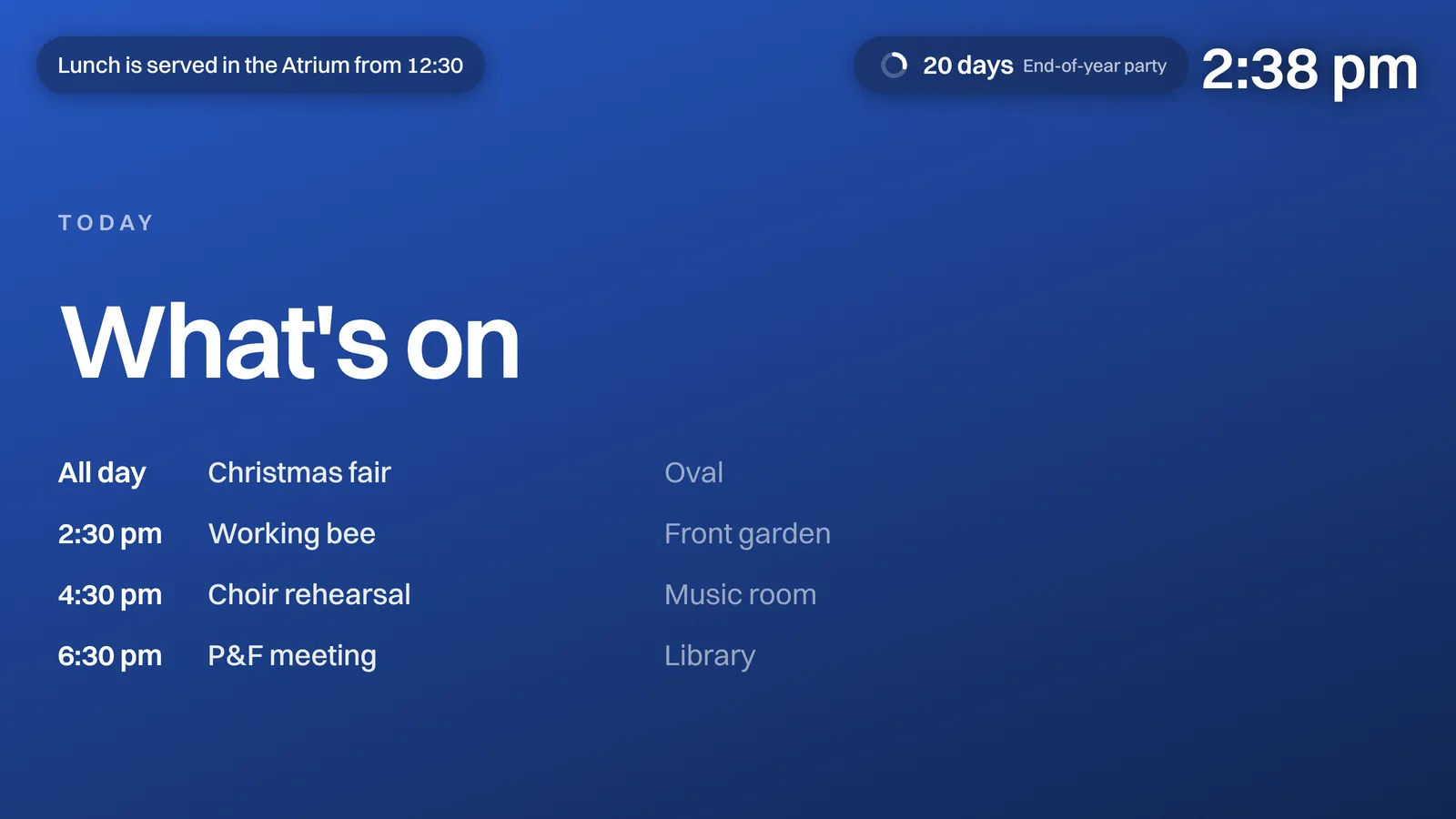
There are two parts to it. The Calendars app is where you add a calendar, once. A What's on board picks one of those calendars and decides how much of it to show. One school calendar can feed a "Today" board in the foyer and a "This week" board in the staff room, and if the link ever changes you fix it in one place.
It works on every Apple TV and web browser screen you already have. There's no app update to wait for.
Add a calendar
- Choose Apps in the sidebar, then Set up on the Calendars card. It's also in Settings → Apps → Calendars.
- Select Add a calendar.
- Choose A calendar link.
- Give it a Name people will recognise, like "School events".
- Paste the calendar's address into Calendar link.
- Check the line under it that says Times shown in Sydney time (or wherever you are). If that's wrong, select Change and pick the right time zone.
- Select Add calendar.
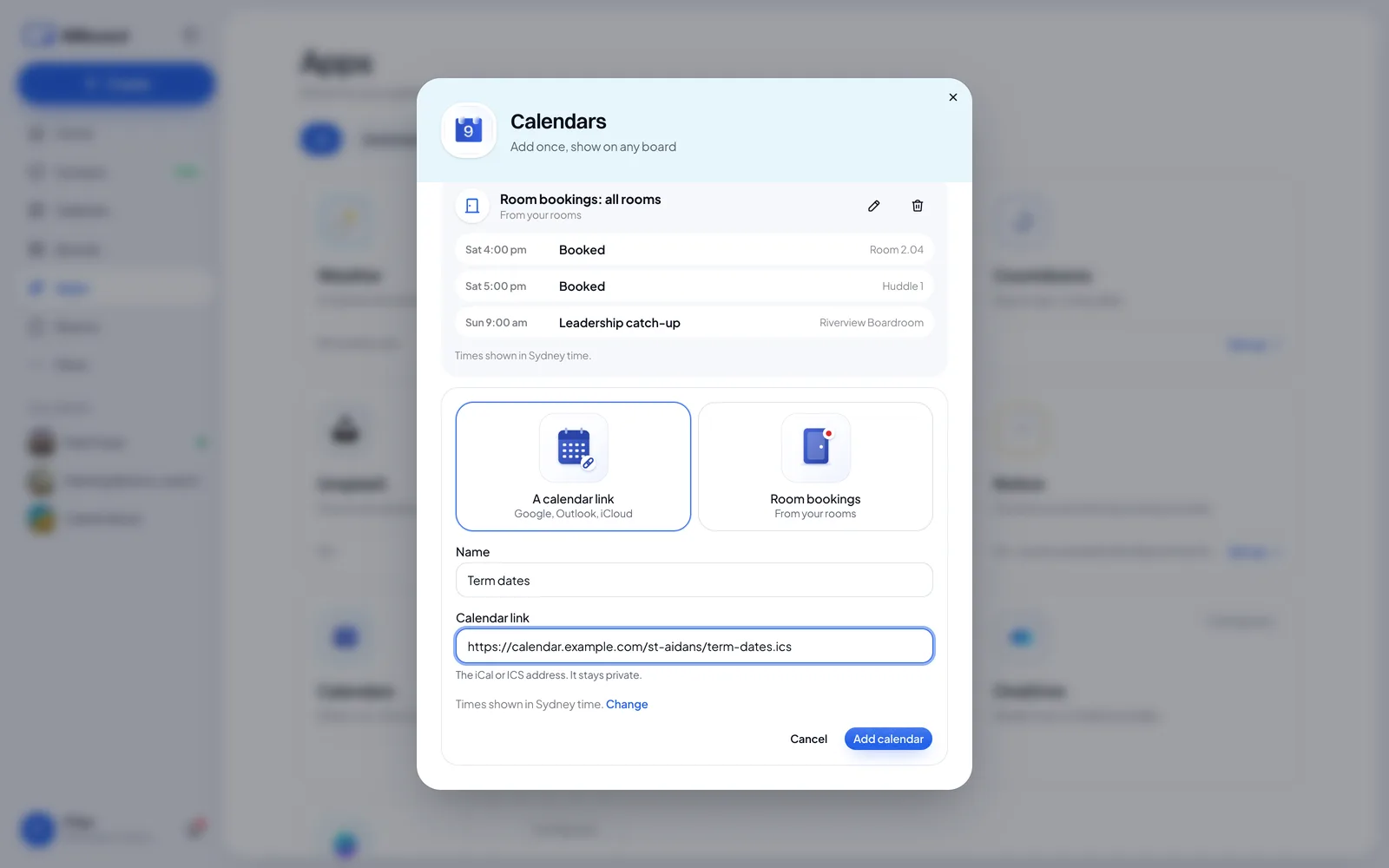
Billboard reads the calendar straight away, so you know whether the link works before it goes anywhere near a TV. Each calendar in the list shows its next three events and the time zone it uses.
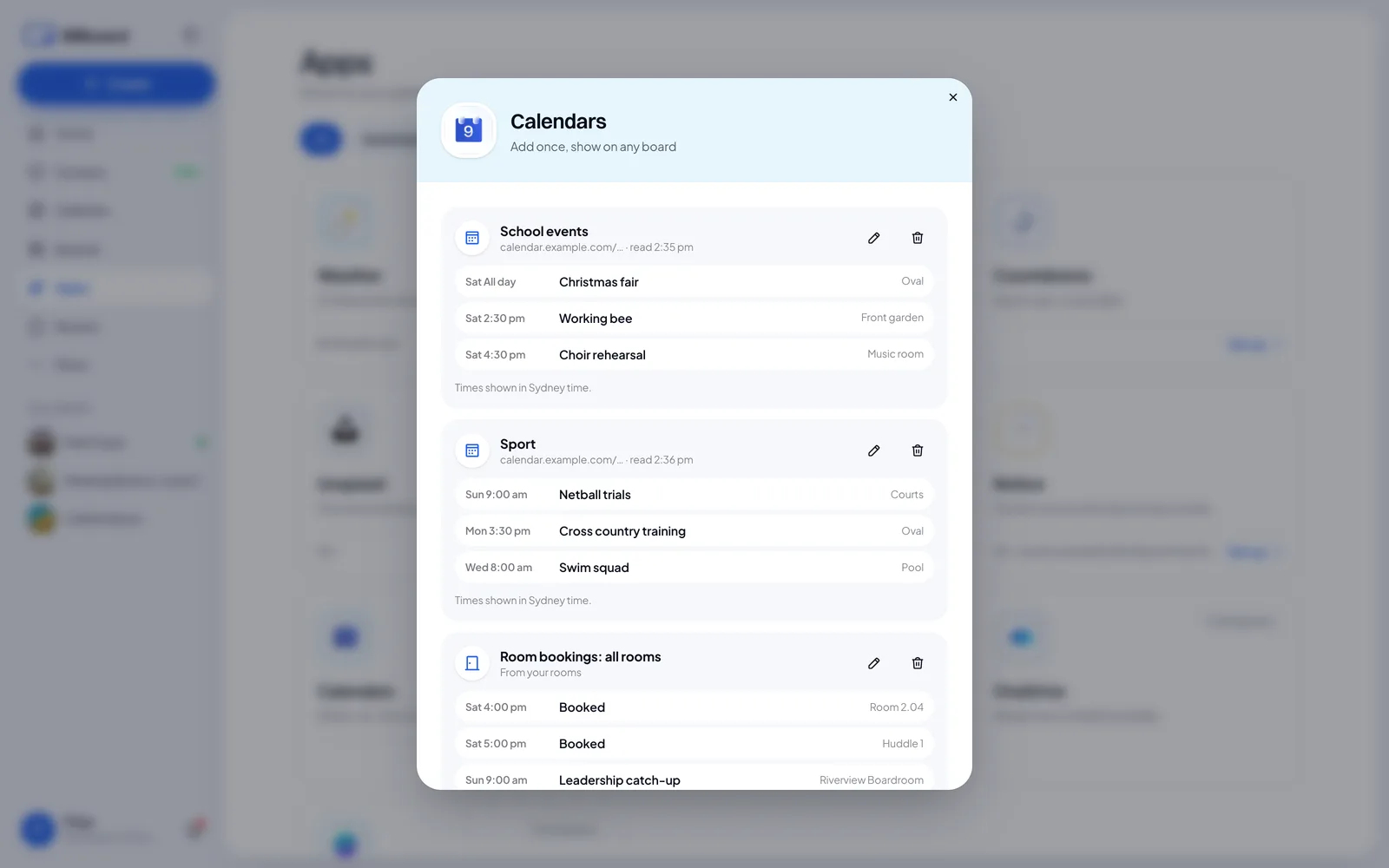
Calendar links work on every plan, Free included.
Where to find the link
You want the calendar's iCal or ICS address. Most calendars have one, and a webcal:// link works too.
- Google Calendar. Open the calendar's Settings and sharing and scroll to Integrate calendar. Use Public address in iCal format for a public calendar, or Secret address in iCal format for one that isn't.
- Outlook and Microsoft 365. In Outlook on the web, go to Settings → Calendar → Shared calendars and use Publish a calendar. Pick Can view all details, publish it, and copy the ICS link.
- iCloud. Share the calendar as a Public Calendar and copy the link.
- School and club systems such as Compass and Sentral usually have an iCal or calendar export link. Look for "subscribe" or "iCal" in their calendar settings.
A secret address is like a password for that calendar. Billboard keeps it private and only ever shows which website it's on in the dashboard.
Google Calendar
If your account has connected Google Calendar, you can add any of that account's calendars straight from the list, no link needed. It's the same connection Rooms uses.
- In Add a calendar, choose Google Calendar.
- Pick the calendar. Its name and time zone fill in, and you can change either.
- Select Add calendar.
Google Calendar works on every plan, Free included. If Google isn't connected yet, an admin gets a Connect button right there, and anyone else is asked to find an admin. Only each event's title, time and location are read, never descriptions or guests. To show a different Google calendar, add it as a new one, because editing an entry only changes its name and time zone.
Room bookings
If you have Billboard Rooms, a What's on board can show room bookings instead of an events calendar. In Add a calendar, choose Room bookings, then pick a room under Which rooms, or All rooms.
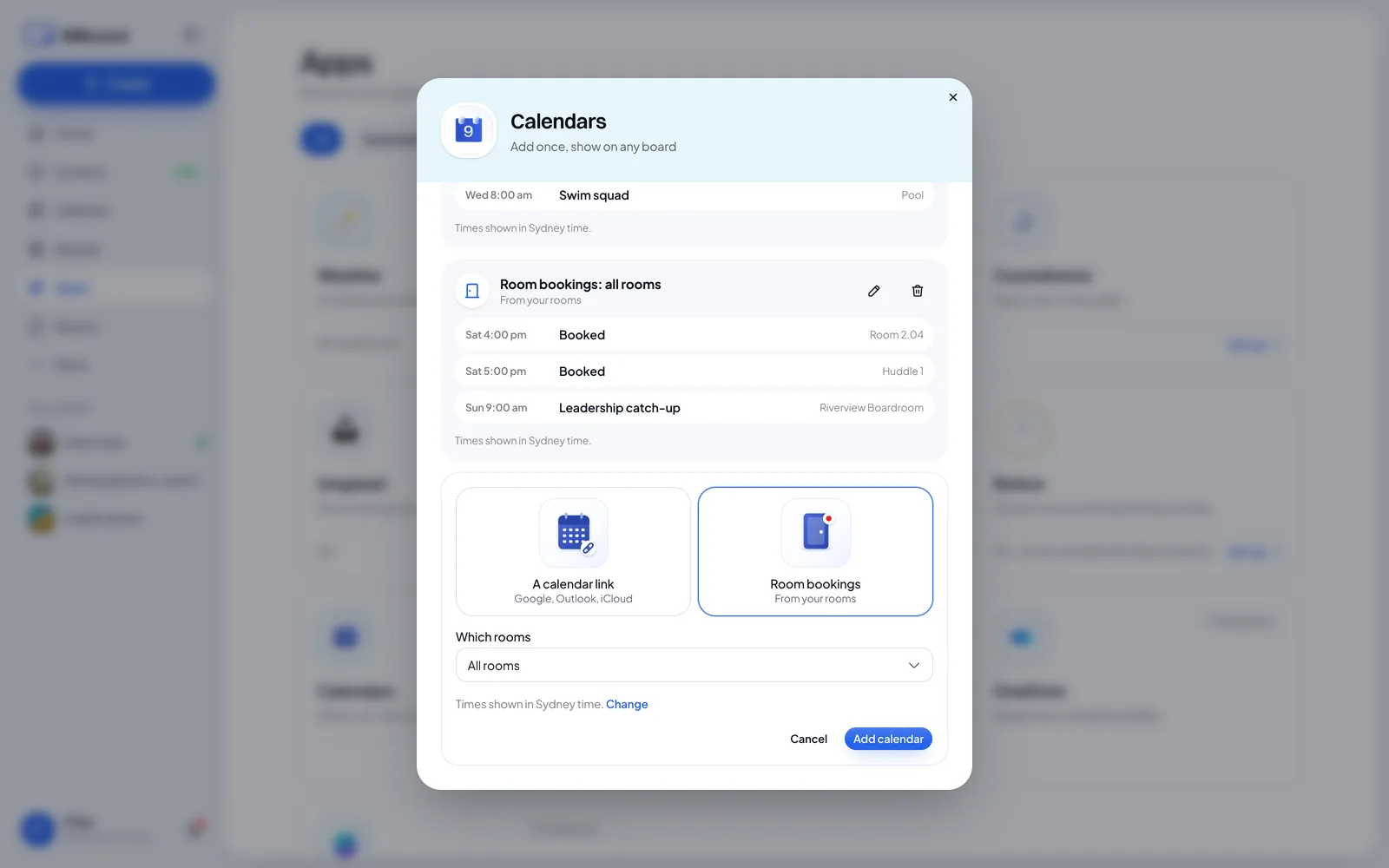
- Each booking shows its room beside it, so an all-rooms board still makes sense.
- A private booking shows as Booked. So does any booking in a room set to hide titles. The room being taken is the point, so it's never left off, but its title never reaches the screen.
- Admins can show All rooms. Members can only pick a room they made.
- Room bookings come with the Rooms add-on. Without it you'll see Add Rooms instead.
- If a room is deleted, its entry says This room was removed and any board using it comes off screens until you pick another room.
Change or delete a calendar
Select the pencil on a calendar to rename it, paste a New link or change the time zone. Leave the link empty to keep the one you have.
The bin deletes it. Any board using that calendar comes off screens. Only an admin or whoever added the calendar can delete it.
Make a What's on board
- Choose Boards in the sidebar, then New board. Create → New board gets you to the same place.
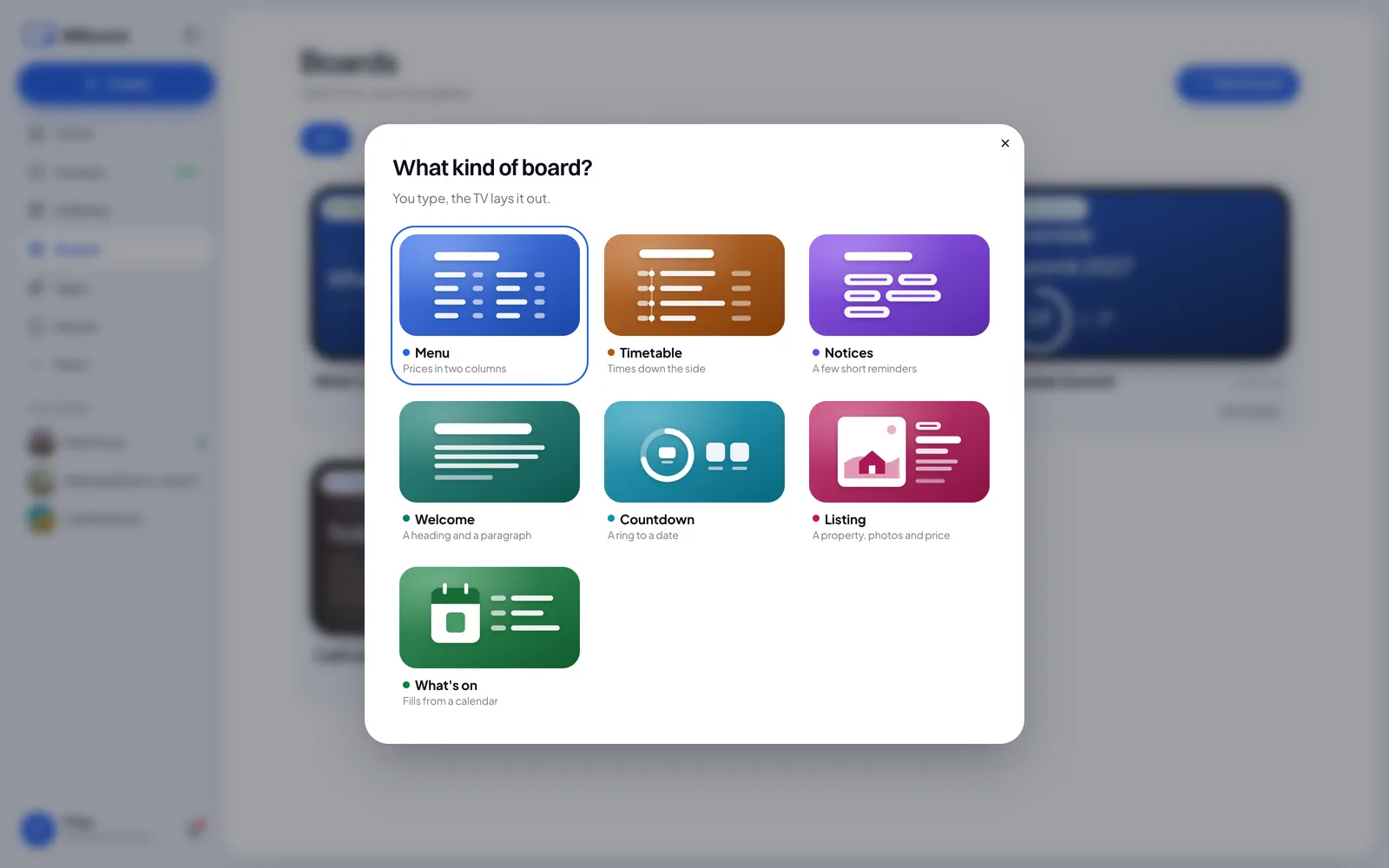
- Under What kind of board?, choose What's on.
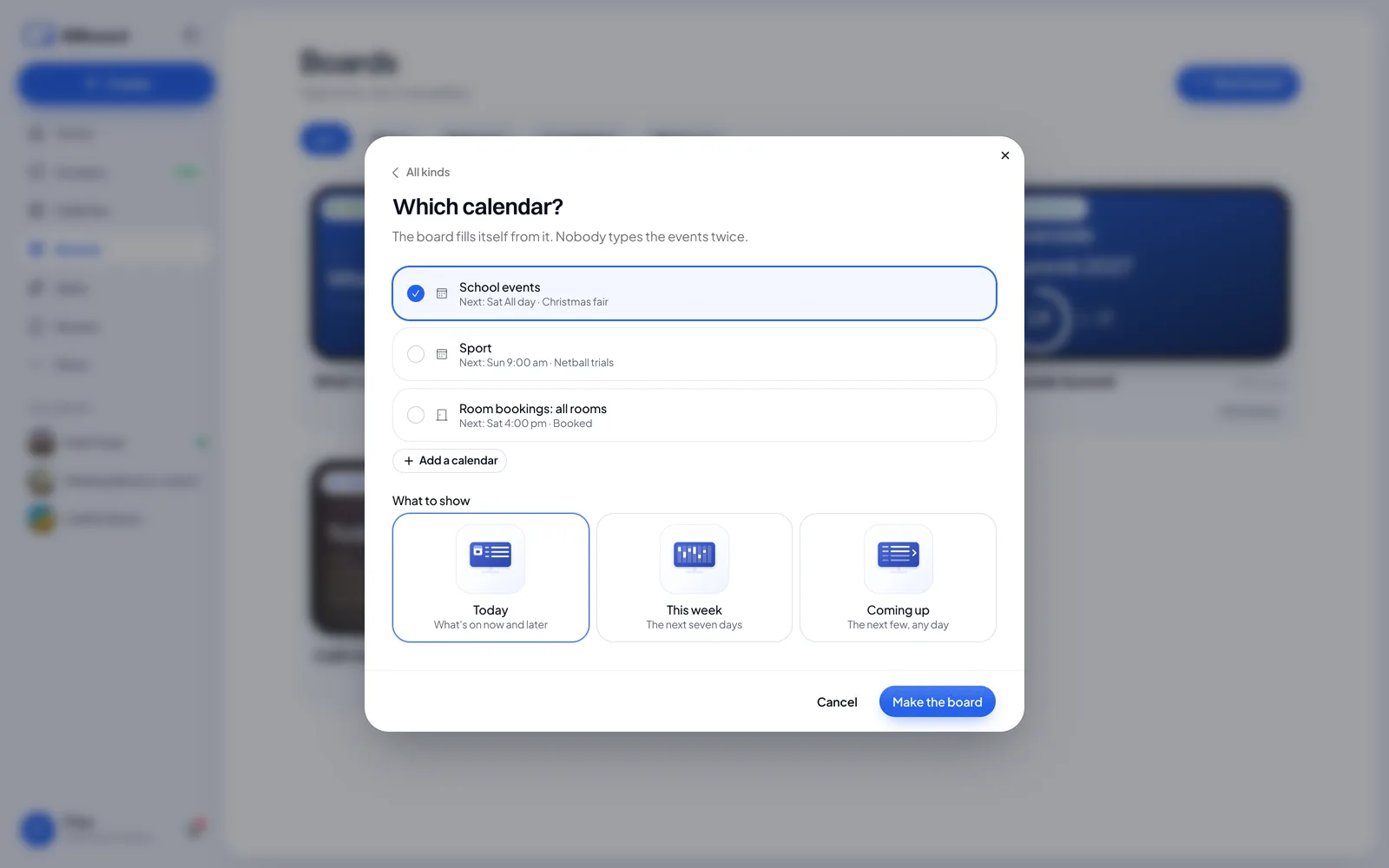
- Under Which calendar?, pick one. Add a calendar works here too if it isn't in the list yet.
- Under What to show, pick Today, This week or Coming up (more on those below).
- Select Make the board.
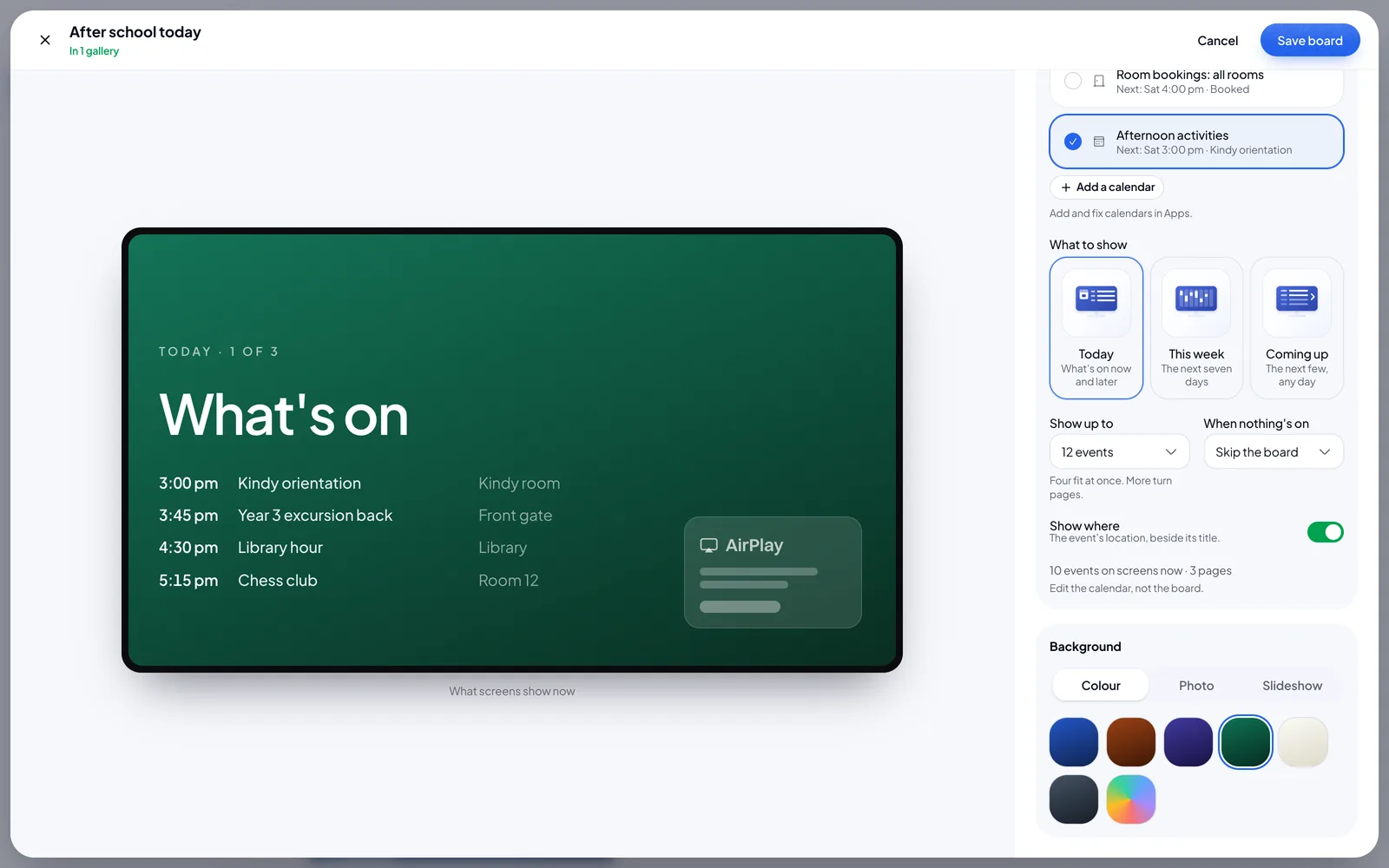
The editor opens with the heading set to "What's on" ("Room bookings" for rooms) and the subheading set to the range you picked. Change either, choose a background, then select Add board. Put it in a gallery the same way as any other board. See Design a board.
The board in the editor shows exactly what screens would show right now, under What screens show now. You can't type events into it. If something on it is wrong, fix it in the calendar.
What to show
- Today. What's on now and later today. Times read like "2:30 pm", or "All day".
- This week. The next seven days, with the day in front of each time, like "Mon 9:00 am".
- Coming up. The next few events on any day, up to a fortnight ahead. Each one shows its date, like "Thu 4 Dec".
Show where adds each event's location beside its title. Room bookings always show the room.
Show up to, and pages
Show up to picks 4, 8 or 12 events. Four fit on a board at once. When there are more, the board turns pages: a screen shows the first four, then the next four, each for the board's usual time, all in the board's place in the running order. The subheading counts them, "Today · 1 of 3", so people know more is coming.
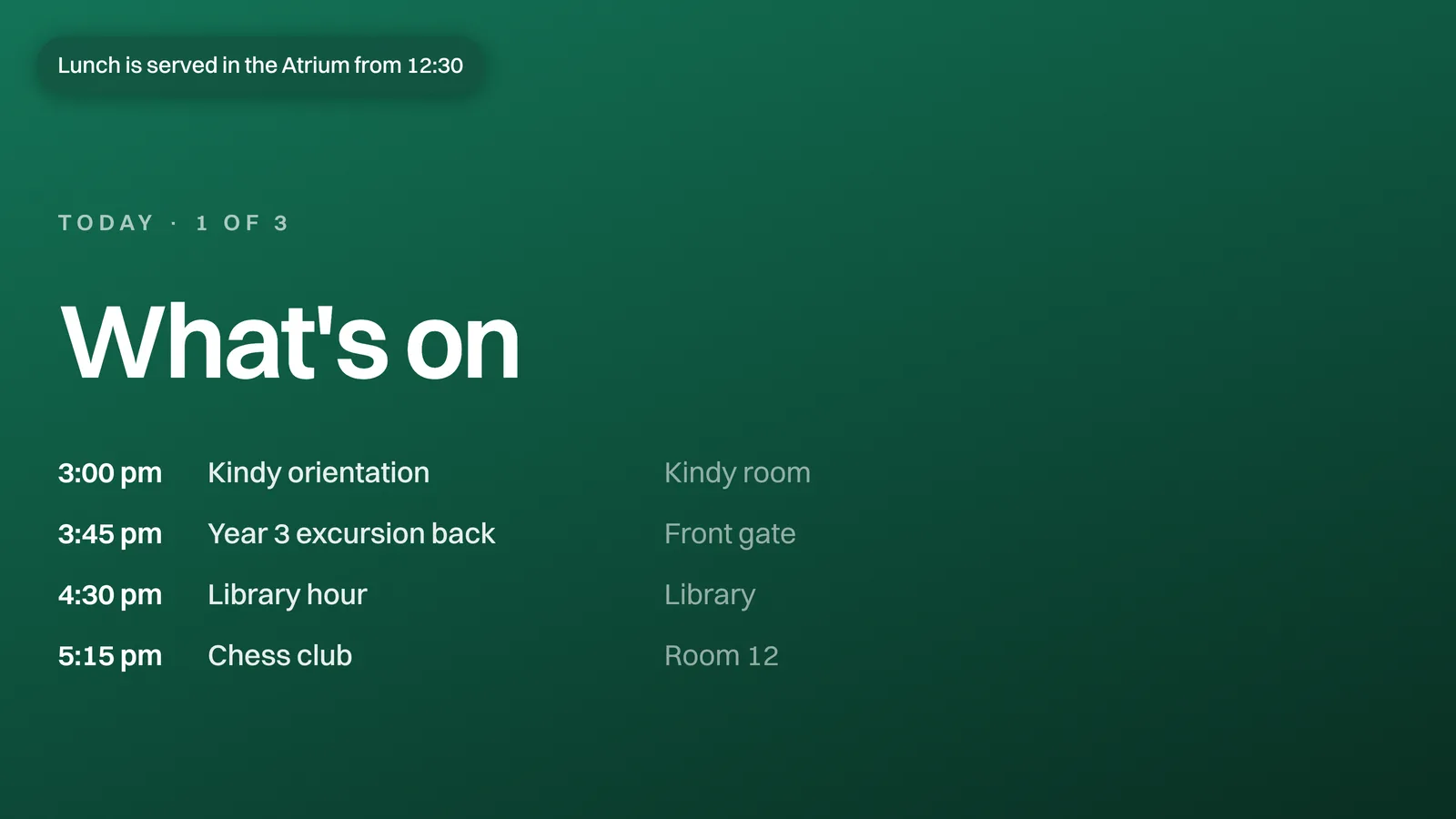
The editor tells you how many events are on screens now and how many pages that makes. A board that fits on one page has no counter and looks like any other board.
When nothing's on
When nothing's on decides what happens on a quiet day:
- Skip the board, the default. Screens leave it out of the running order until there's something to show.
- Say nothing's on. The board stays and says "Nothing on today" ("No bookings today" for room bookings).
What never shows
- Private events. An event marked private or confidential in the calendar never reaches a screen, not even as a gap. The same goes for an event with no title.
- Anything that's finished. Events drop off once they end, so a Today board gets shorter through the day. Something happening right now stays on until it's over.
- Descriptions, attendees and organisers. A screen shows the time, the title and, if you ask, the location. Nothing else is read from the calendar.
Event titles appear exactly as they're written in the calendar. The times, "All day" and the page counter follow the screen's language. See Screen languages.
How fresh it is
Billboard reads a calendar link about every 15 minutes while a screen is playing it, so a new or moved event takes up to a quarter of an hour to appear. Google calendars are read about every 5 minutes. Room bookings come straight from Rooms and are always current.
If something looks wrong
The times are out
Each calendar has its own time zone, shown under its events in the Calendars app as Times shown in Sydney time. If every event is out by the same number of hours, that's the cause. Select the pencil on the calendar, choose Change beside the time zone, pick the right one and Save. Billboard reads the calendar again straight away.
The board says it couldn't read the calendar
If a link stops working, the calendar's entry says Couldn't read this calendar since and the time it last worked, with the reason underneath.
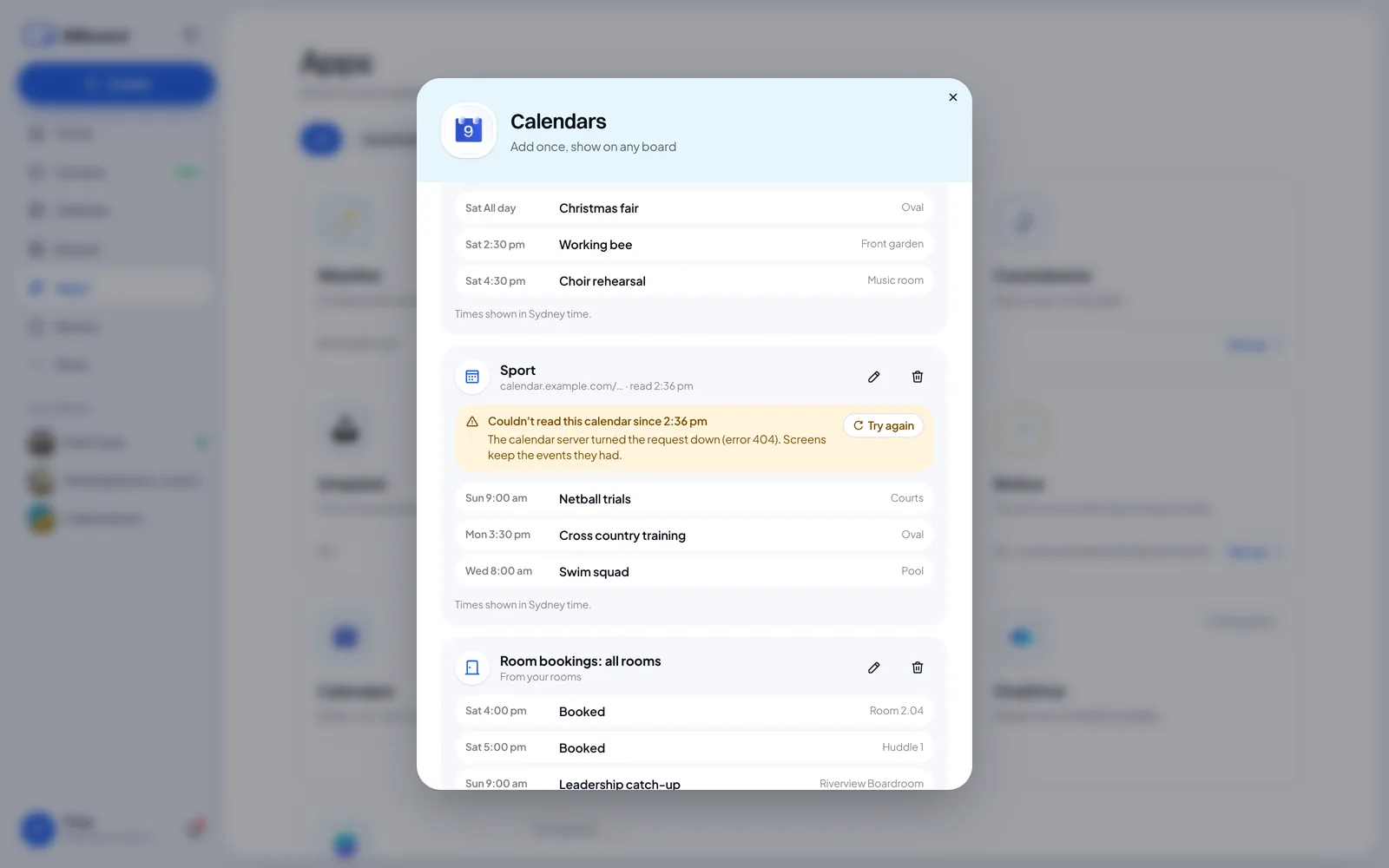
Screens keep showing the last events they had, so nothing goes blank while you sort it out. Check the link still opens in a browser. A calendar that was unpublished, or a secret address that was reset, needs the new link pasted in with the pencil. Then select Try again.
The link has to start with https (or webcal). A calendar over 2 MB is too big to read, which usually means a very large public calendar. A smaller calendar of just the events you want on screen works better anyway.
If a Google calendar's entry says Google access was removed, someone disconnected Google or took away Billboard's access. An admin can reconnect it in Settings → Calendars, then select Try again. Screens keep their events until then.
The board is empty or missing
- Nothing in range. A Today board on a quiet day has nothing to show. With Skip the board it leaves the running order, which looks like it vanished. Try This week or Coming up, or switch to Say nothing's on.
- The events are private. Private events never show. In Outlook, publishing with Can view when I'm busy sends events without titles, and those are left off too. Publish with Can view all details.
- The calendar was deleted. The editor says This board's calendar was deleted and asks you to pick another.
- Just added an event? Give it up to 15 minutes.