 Billboard
Play Billboard in a web browser
Turn a smart TV, a PC or a streaming stick into a Billboard screen with a link, no app needed. How to set one up, keep it running and how it counts on your plan.
Last updated 28 November 2026
Billboard doesn't need an Apple TV. Any screen with a modern web browser can play a gallery: a smart TV's own browser, a small PC behind a display, a streaming stick that runs a browser, or a spare laptop. It plays the same slideshow, boards, weather and alerts the Apple TV does.
Set one up
- Go to Screens in the sidebar and select Connect a screen.
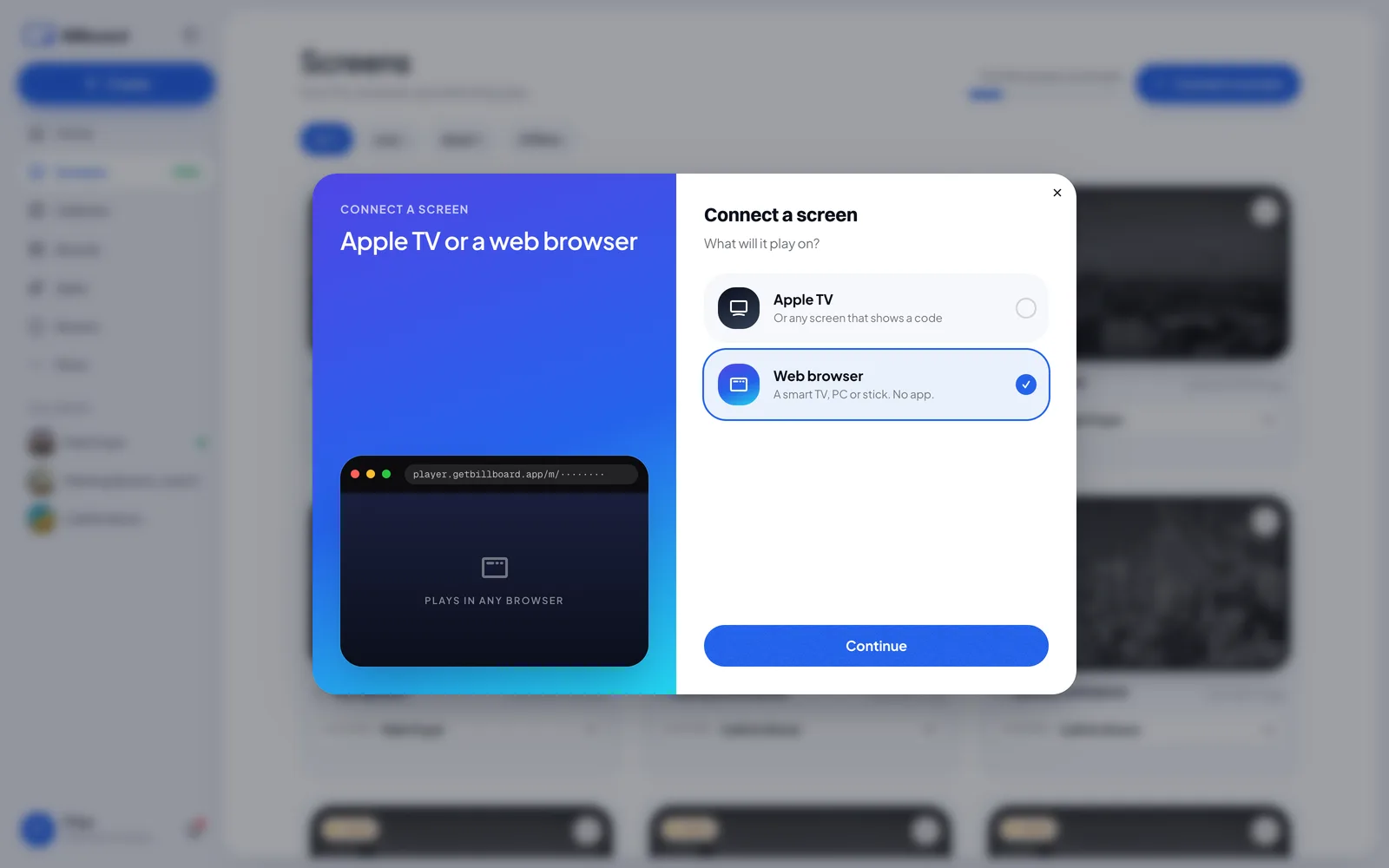
- Choose Web browser and select Continue.
- Give the screen a name people will recognise, like "Reception", and select Continue. Leave it empty and Skip if you'd rather name it later.
- Pick the gallery it should play, then select Get the link.
That saves the screen. It appears in Screens straight away as Not opened yet, and you get its link.
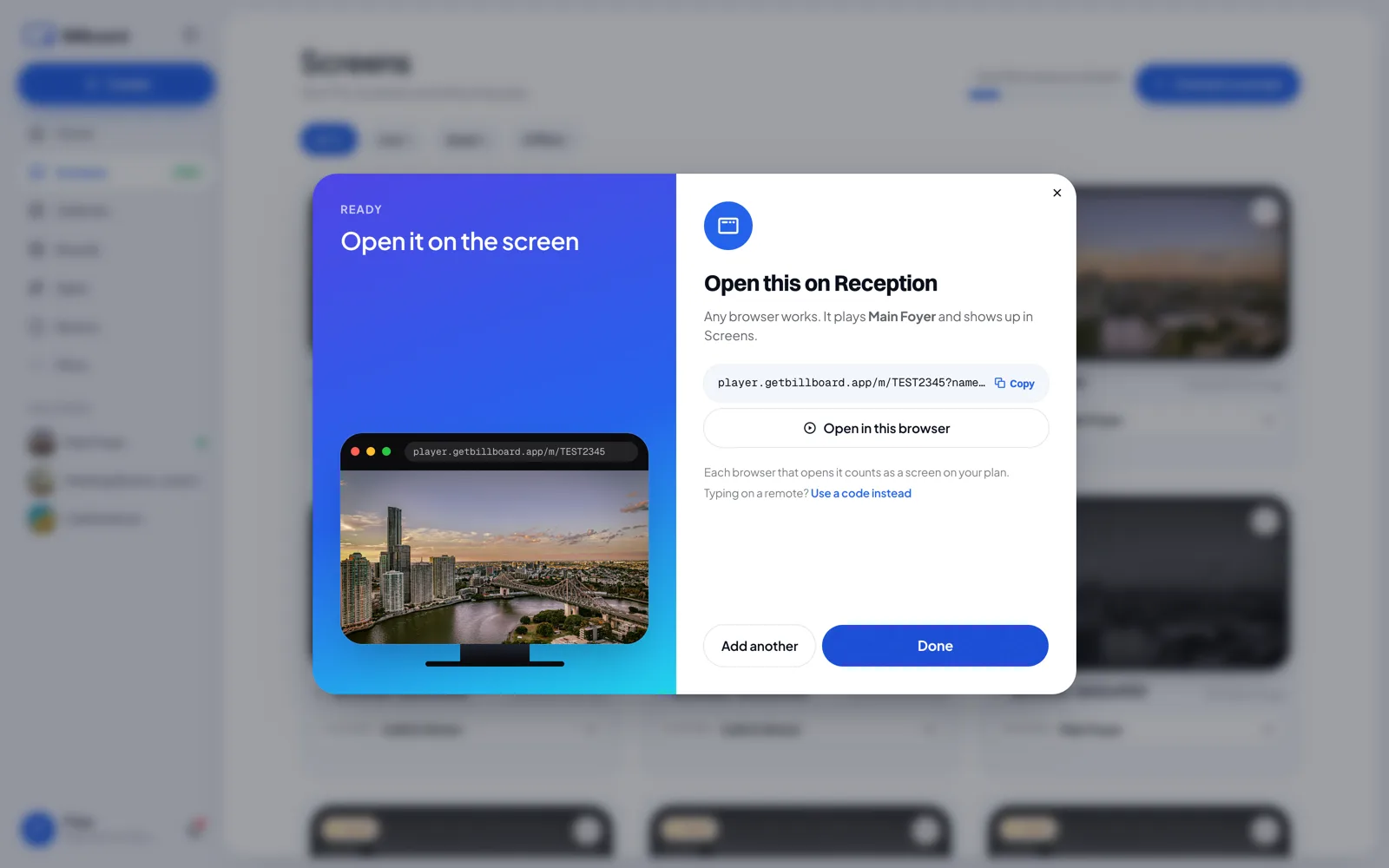
From there:
- Copy it and open it on the screen. Email it to yourself, or paste it into the screen's start page.
- Open in this browser to make the computer you're on the screen.
The link belongs to that screen. Open it on the TV, PC or stick and the card in Screens goes live, with the name you gave it and a small browser icon. Opening it again in another browser, or reloading, is still the same screen. From a gallery, Gallery settings → Screens → Connect a screen does the same thing with the gallery already picked.
Typing on a TV remote
A long link is painful to type with a remote. Open player.getbillboard.app on the screen instead. It shows a short code and a QR code. Scan the QR with your phone and your dashboard opens with the code filled in, ready to name the screen and pick a gallery. Or, in your dashboard, select Connect a screen, choose Apple TV and type the code.
Make it look right
- Go full screen. The player offers a Full screen button in the bottom corner when it opens. Browsers only allow full screen after a click, so someone has to press it once. On a PC, F11 does it too.
- Stop the screen sleeping. Billboard asks the browser to keep the screen awake while it plays, but a PC's own power settings can still turn the display off. Set it to never sleep.
- Open it at start-up. Set the link as the browser's home page, or have it open when the computer starts, so a power cut doesn't leave a desktop on the wall.
How it counts on your plan
A browser screen counts exactly like an Apple TV, from the moment it first opens. A saved screen nobody has opened yet doesn't use a slot. Each screen is one slot however many browsers open its link. If you go over your plan, the newest screen shows a paused message until a slot frees up.
A preview from inside the dashboard doesn't count.
Change or stop it
- Change what it plays from the Playing picker on its card in Screens. Nobody has to touch the screen.
- Open it again or copy its link from the ⋯ menu on its card: Open player and Copy link. A screen that hasn't opened yet shows both under its gallery too.
- Rename it from the ⋯ menu on its card.
- Stop it with Remove from list in Screens, then close the browser tab. A browser still showing it after it's removed carries on as a new screen, so close it there too.
Good to know
- If the network drops, the screen keeps playing what it last had and catches up when it's back. See Staying live when the internet drops.
- Videos play muted unless the gallery is set to play them with sound and the browser allows it. Some browsers only allow sound after someone has clicked the page once.
- An Apple TV is still the better choice for a screen you never want to think about. It wakes on its own, updates itself and can't be clicked away from the slideshow.