Technician mode
Turn on the on-screen diagnostics overlay to see a screen's sync status, countdowns, the code it's playing and app version at a glance. The fastest way to diagnose a display.
Last updated 15 July 2026
Technician mode puts a small diagnostics overlay in the corner of the screen. It's the quickest way to tell whether a display is healthy. Is it syncing? When does it next check for changes? Which gallery is it on, and what version is it running? No guessing, no plugging in a laptop. It's read-only, so turning it on changes nothing about what plays.
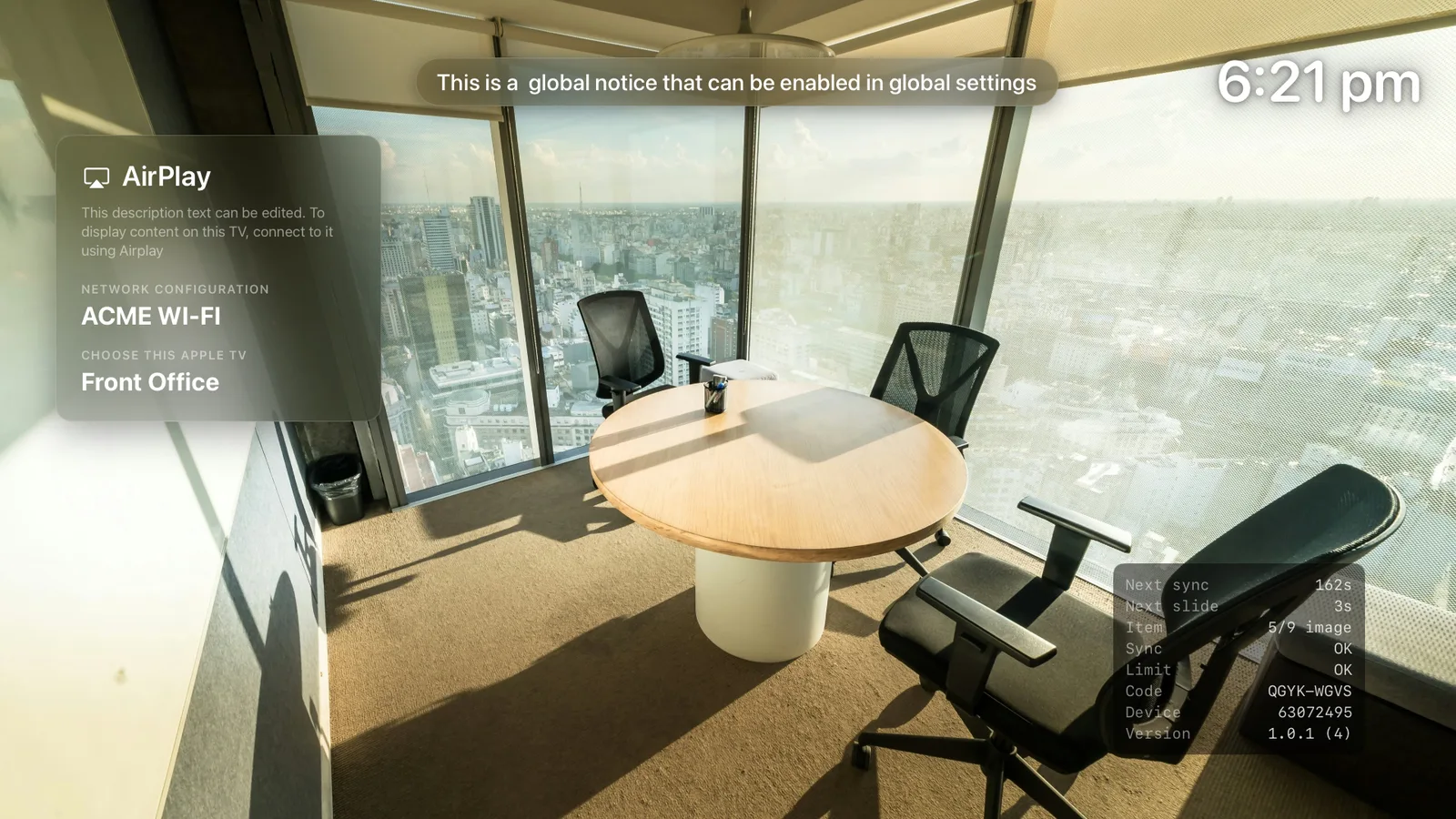
Turn it on or off
- On the Apple TV, press Back on the Siri Remote to open the on-screen menu.
- Select Technician Mode. The overlay appears straight away, and the menu row shows On.
- To hide it, open the menu again and select Technician Mode to switch it off.
Leave it off on public screens. The overlay is for you and our support team, not for visitors. Turn it off once you've finished checking a display.
What each line means
| Line | What it tells you |
|---|---|
| Next sync | Seconds until the screen next checks the dashboard for changes. New media, settings or notices land at the next sync. |
| Next slide | Seconds until the current item changes to the next one. |
| Item | Which item is showing, out of the total, and whether it's an image or video (for example 5/9 image). |
| Sync | OK if the last content check succeeded, error if it couldn't reach the manifest. |
| Limit | OK if the screen is within your plan's screen limit, over if it's beyond it and showing the paused message. |
| Code | The gallery code this Apple TV is playing. |
| Device | A short identifier for this screen. |
| Version | The Billboard app version and build number. |
Using it to diagnose a screen
- Content isn't updating. Check Sync reads
OK, then watch Next sync count down. Changes only show up after the next sync. If Sync showserror, the screen can't reach Billboard, so check the network requirements. - The screen shows a "paused" message. Look at Limit.
overmeans the account has more active screens than the plan allows. See What counts as an active screen. - Wrong content. Confirm Code matches the gallery you meant.
- Contacting support. Quote the Version and Device lines when you email us. It helps us pinpoint the screen and rule out an out-of-date app.
Still stuck? Send us the overlay's readout at support@getbillboard.app and we'll take a look.